How to Install Apps on a Samsung Smart TV
Quick Answer
Open Apps, sign in to your Samsung account, select the app and press Select, select Install, then select Open. The installed app runs.
Manual Illustration
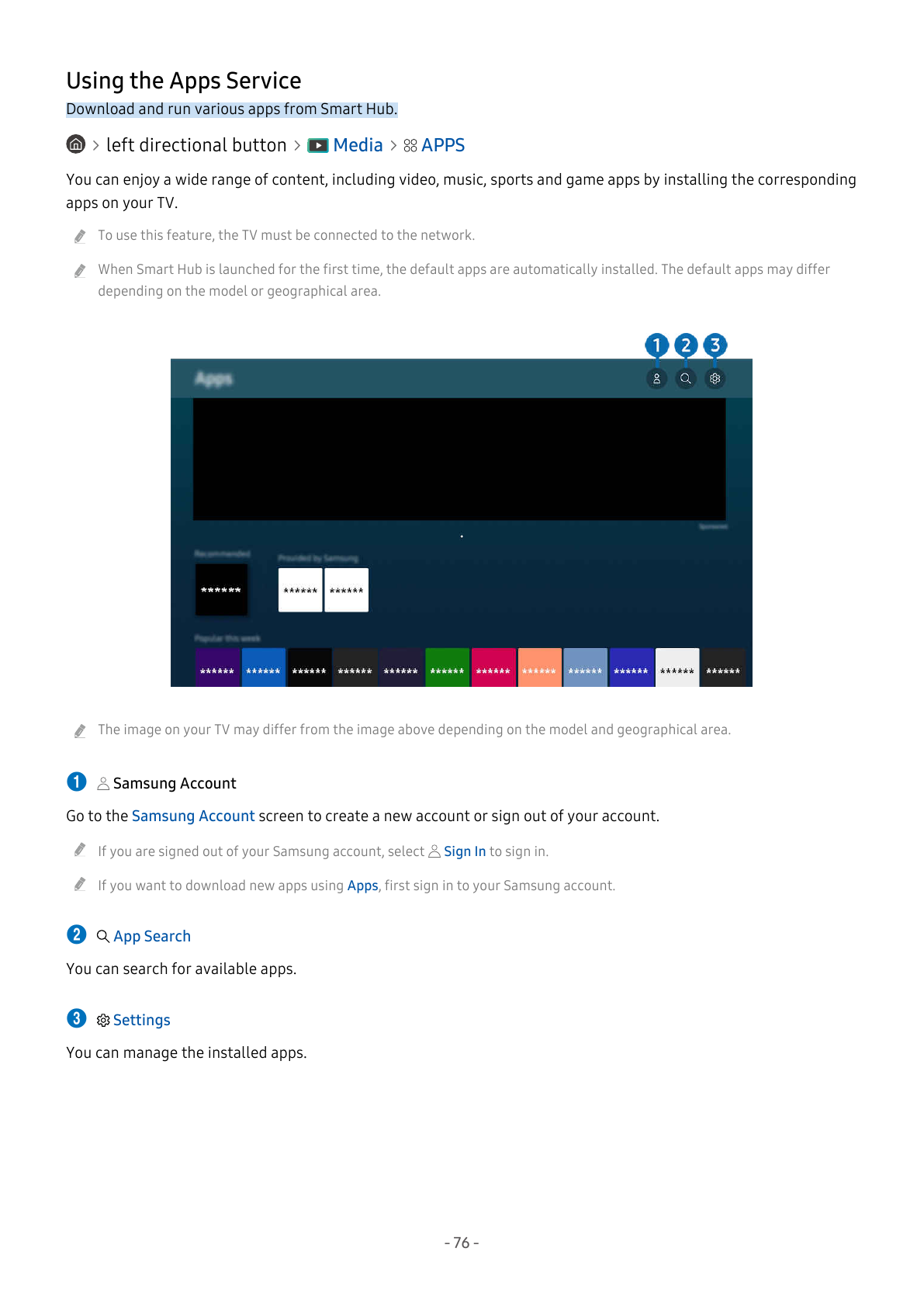
Before You Start
- The TV must be connected to the network.
- Sign in to your Samsung account before downloading new apps.
- This procedure uses the Media > Apps interface; other TV generations can use different menus.
- Default apps can differ depending on the model or geographical area.
Steps
1. Open Apps from the Media menu
Go to Home > left directional button > Media, then open Apps. The Apps service is displayed.
2. Sign in to your Samsung account
Go to Apps > Samsung Account, then sign in to your Samsung account. You must be signed in before downloading new apps.
3. Select the app you want to install
In Apps, select the app and press Select. The detailed information screen appears.
4. Select Install
In App detailed information screen, select Install. The Open menu appears when installation is complete.
5. Select Open
In App detailed information screen, select Open. The app runs immediately.
Expected Result
The installed app runs.
Model Notes
This guide is limited to QN65QN90CAFXZA. Other TV models, remote types and menu generations require their own procedure.
Source Information
This independent help article is based on executable procedures extracted from Samsung user manuals for the supported models. It is not an official Samsung support page. Menu and control illustrations are based on the same Samsung user-manual documentation.