How to Connect a Samsung Camera to a Computer and Transfer Photos
Quick Answer
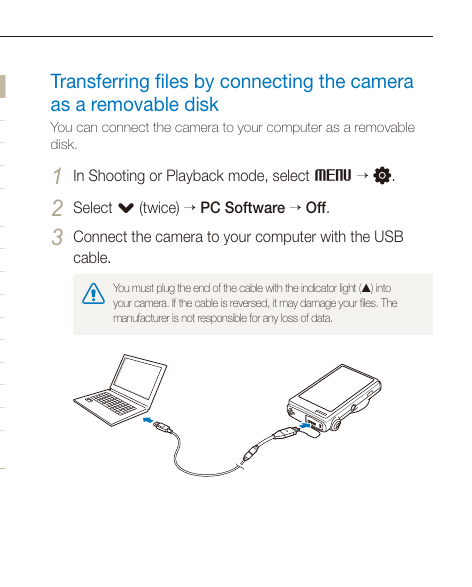
Select PC Software > Off, turn off the camera, connect the USB cable, turn on the camera and select Computer when requested, open the camera photo folder, then copy the photo files. Photo files are saved on the computer.
Manual Illustration
Supported Connection Methods
- Removable disk / USB transfer.
Before You Start
- Wait until file transfer is complete before disconnecting the USB cable.
- Use only the operating-system workflows documented by the manual.
Method 1
1. Set PC Software to Off
Select PC Software > Off at the shooting or Playback mode > M. The camera is ready to connect as a removable disk.
2. Turn off the camera
Turn off the camera. The camera is off before the cable is connected.
3. Connect the camera to the computer with the USB cable
Connect the USB cable using the camera USB port and computer USB port. The physical USB connection is made.
4. Turn on the camera and select Computer if Select Mode appears
Turn on the camera and select Computer when requested. The computer recognizes the camera.
5. Open My Computer > Removable Disk > DCIM > 100PHOTO
In Computer file browser, open the camera photo folder. The camera’s photo files are displayed.
6. Drag or save the files to the computer
In Computer file browser, copy the photo files. The selected files are saved on the computer.
Troubleshooting Connection Problems
- The computer does not recognize the camera when the wrong USB mode is selected.
- A reversed USB cable connection can damage files.
- Wait until file transfer is complete before disconnecting the USB cable.
Model Notes
- Samsung CL Series
- Common validated models: CL80
Source Information
This independent help article is based on executable procedures extracted from Samsung user manuals for the supported models. It is not an official Samsung support page. Menu and control illustrations are based on the same Samsung user-manual documentation.