How to Fix Blurry Photos on a Samsung Camera
Photos are blurry or not focused. Begin with this check: clean the lens. Continue through the supported steps in order. The subject is focused and camera shake is reduced.
Manual Illustration
Symptoms
- Photos are blurry or not focused.
Most Likely Causes
- Low light or incorrect holding can cause blur.
- A red focus frame means the subject is out of focus.
- Tracking can fail when the subject is small, moving, backlit, or in a dark place.
Fixes in Recommended Order
1. Clean the camera lens if it is dirty
Clean the lens. The lens is clean.
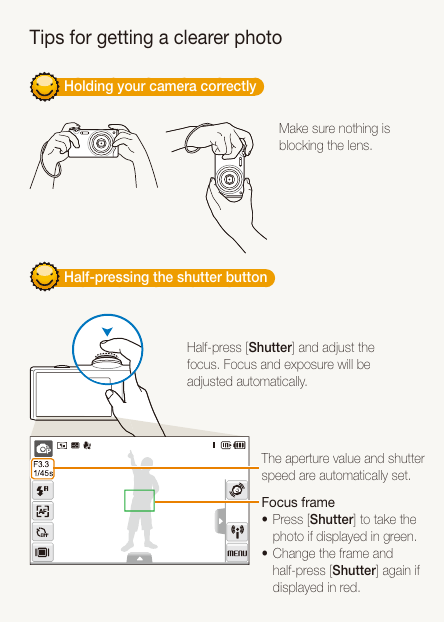
2. Hold the camera correctly and keep the lens unobstructed
Hold the camera correctly. Nothing blocks the lens, flash, or microphone.
3. Half-press the Shutter button to focus
Half-press the Shutter button. The camera adjusts focus and exposure.
4. Capture only when the focus frame is green; recompose and focus again if it is red
Check the focus-frame color at the camera shooting display. Green confirms focus; red means focus must be tried again.
5. Use OIS or a tripod to reduce camera shake
Stabilize the camera using the OIS setting or tripod. Camera movement is reduced.
What the Result Means
The subject is focused and camera shake is reduced.
When to Stop Troubleshooting
Stop when the subject is focused and camera shake is reduced. If the expected result does not occur after the supported steps, do not add unrelated settings; route the case for product support or manual review.
Prevention
- Use a tripod when slower shutter operation makes the camera difficult to hold steady.
- For focus lock, half-press the Shutter button before recomposing.
Model Notes
- Samsung CL Series
- Common validated models: CL80
Source Information
This independent help article is based on executable procedures extracted from Samsung user manuals for the supported models. It is not an official Samsung support page. Menu and control illustrations are based on the same Samsung user-manual documentation.